
Please find the instructions below to help you get setup on the ProblemShared VOIP system.
Installing the Yeastar Linkus Mobile App
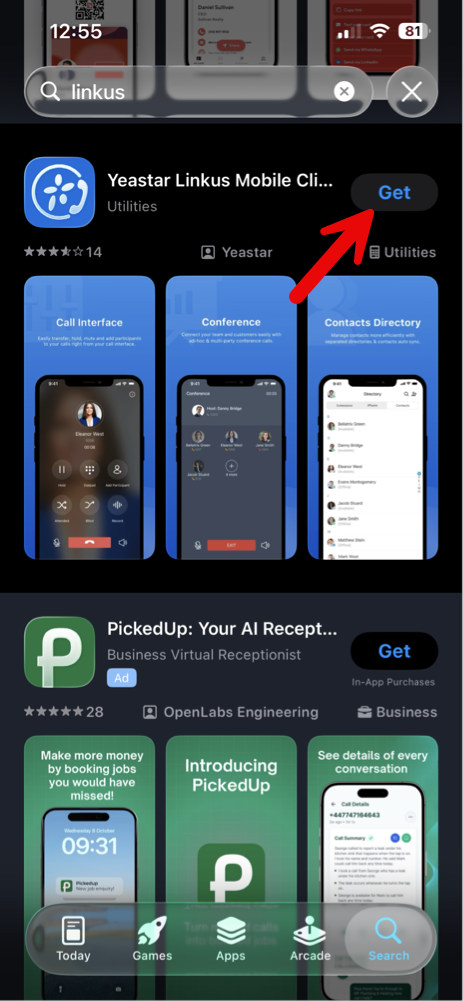
Go onto the Google Play Store (Android) / App Store (iPhone) and search up Linkus, you should see an app similar to the below which you will need to install.
Getting setup on the Yeastar Linkus Mobile App
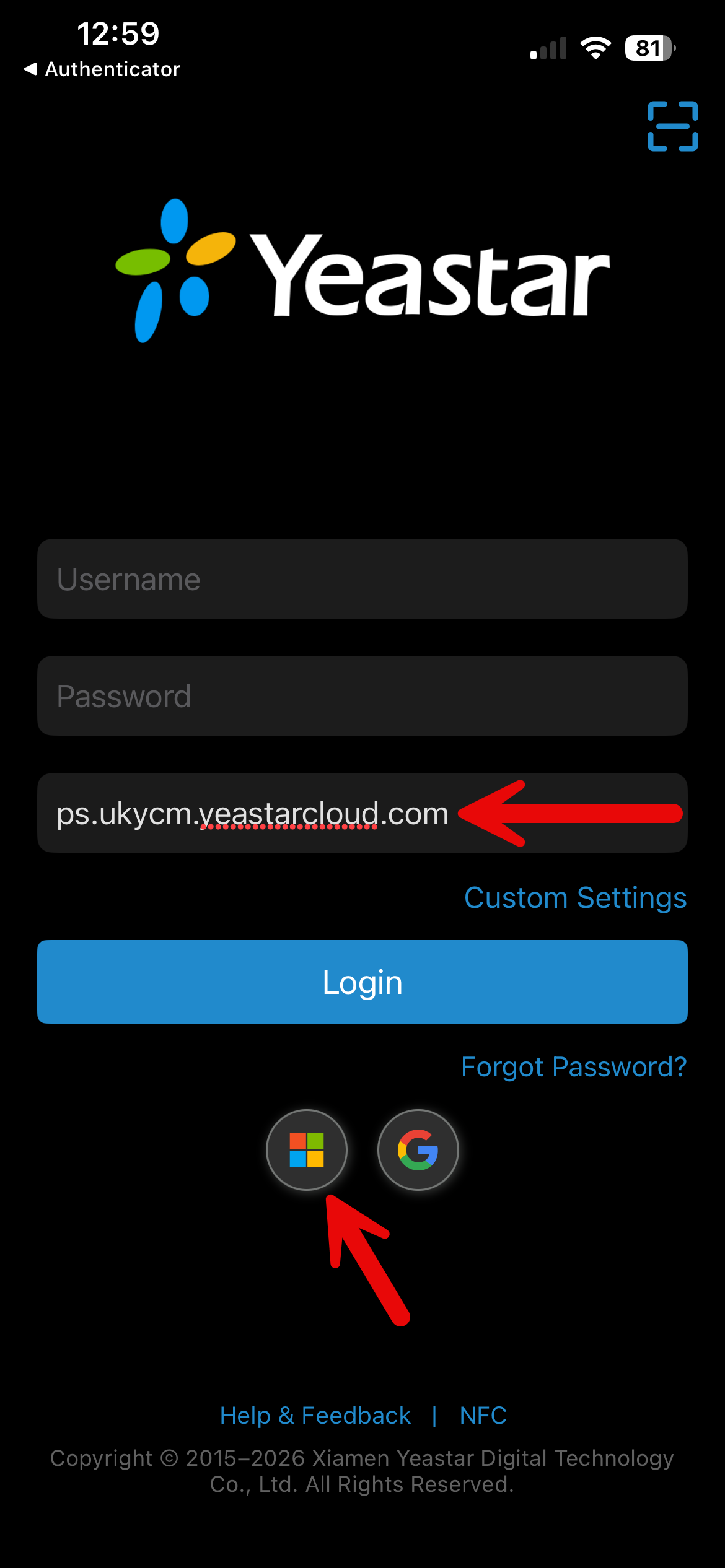
Open the app and enter ps.ukycm.yeastarcloud.com in the SN/Domain field and press on the Microsoft icon.
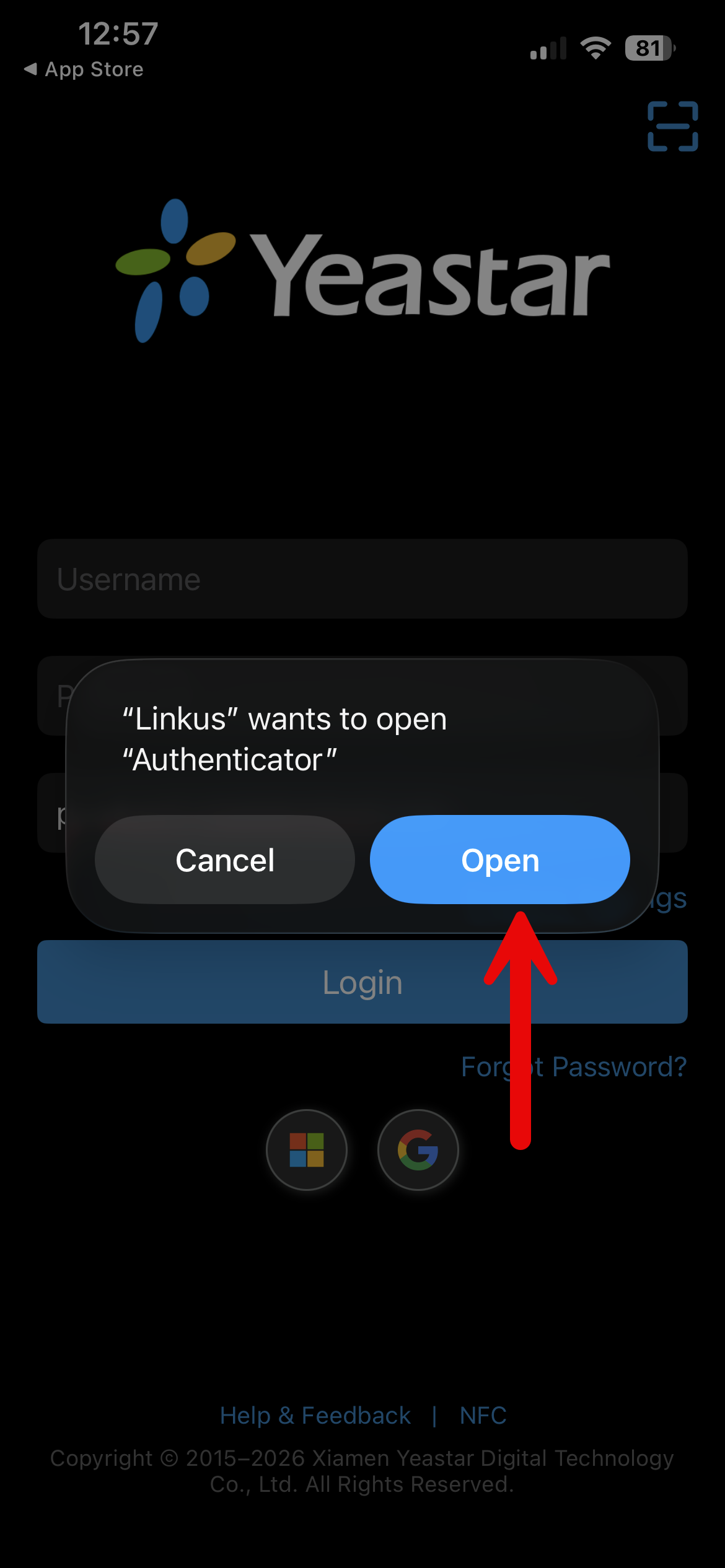
You may receive a Pop-up which you'll need to press Open.
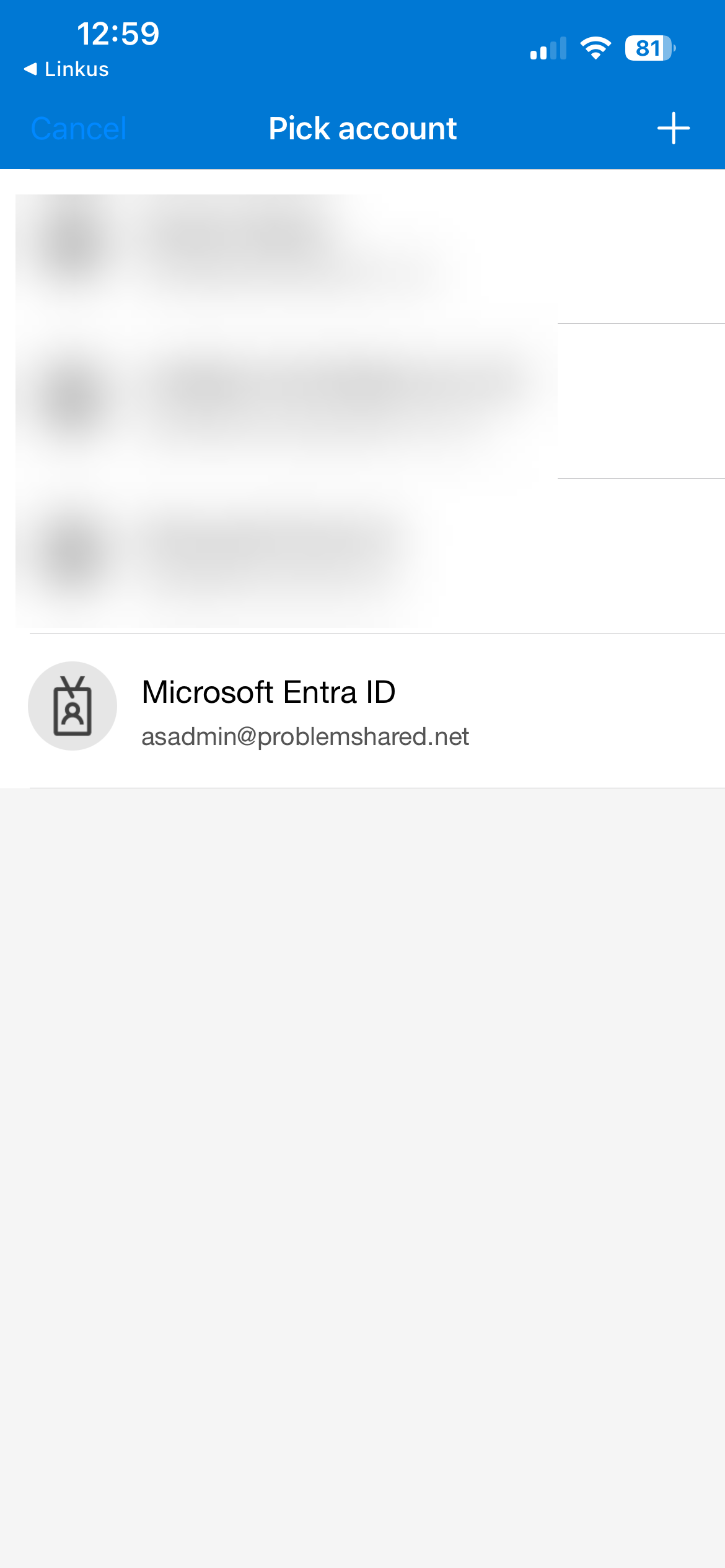
This will open the Microsoft Authenticator app, you'll need to select your ProblemShared email account.
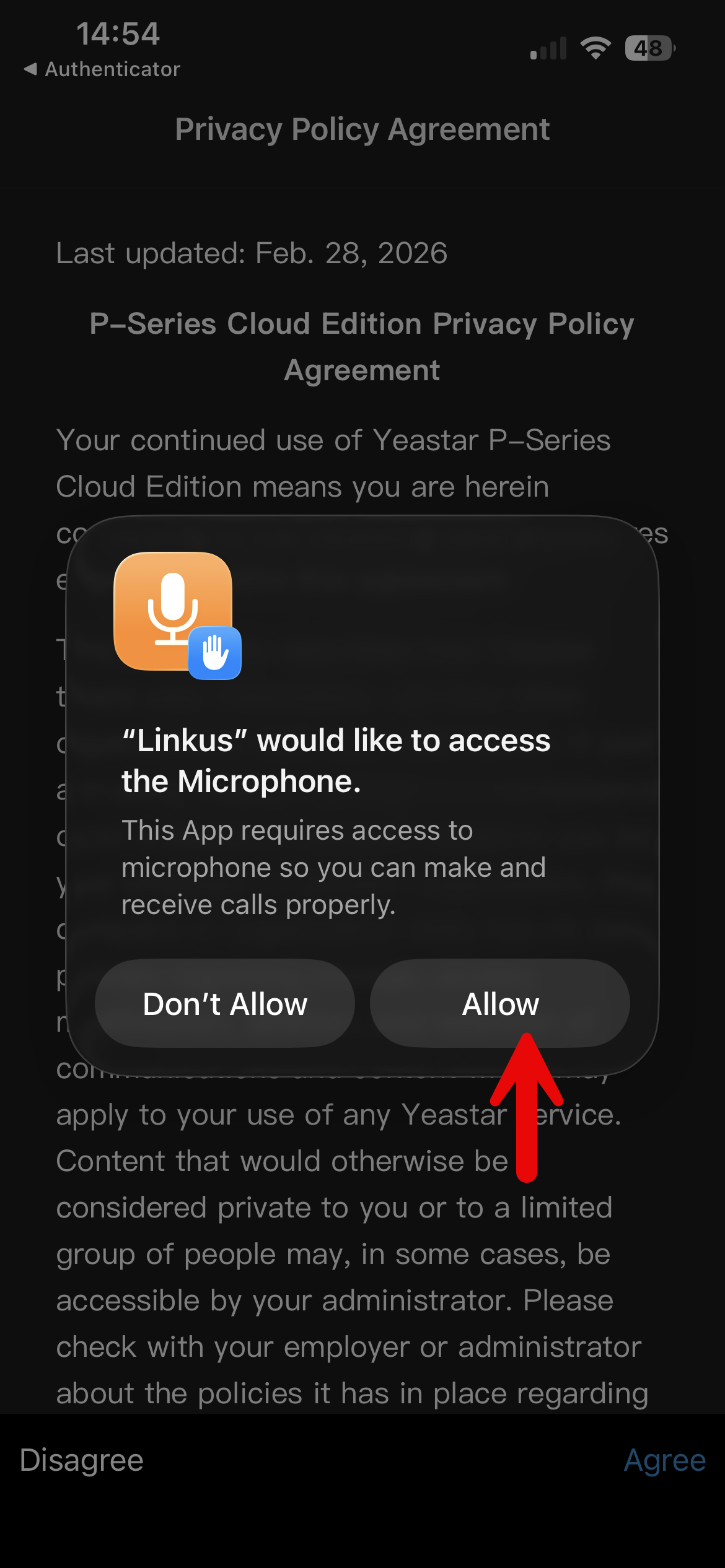
After MFA approval it will bring you back to the Linkus app, you'll need to Allow the Microphone permission and you can disregard any other permissions.
After all the permissions have been completed press on Agree on the bottom right corner.
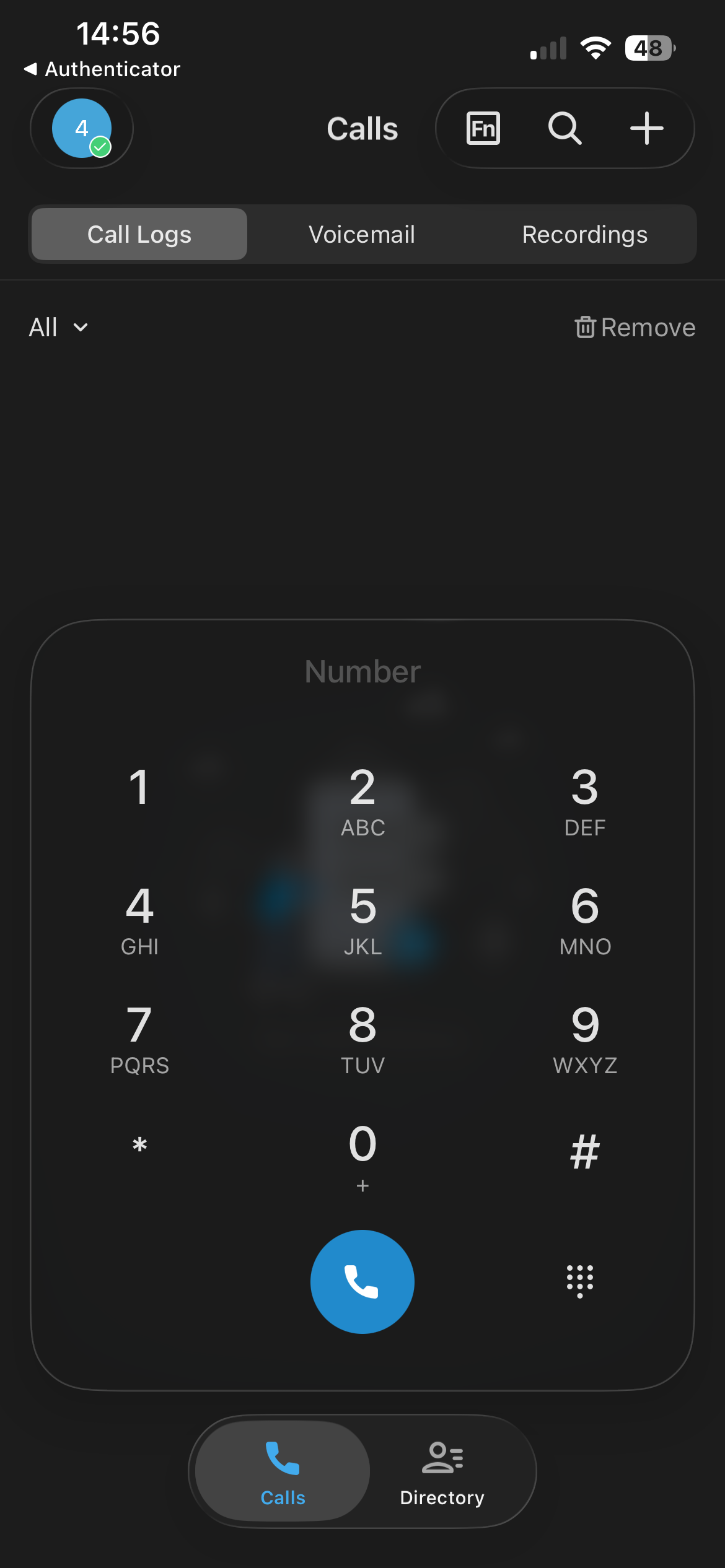
You should then get a screen like the below where you can make phone calls.
Need Help?
You can contact us any time on 0203 728 2555 or email us at support@amazingsupport.co.uk.